Photoshop
Photoshop, operation by operation
One useful technique at a time. Explore the Photoshop guides, then get back to making.
 One click now
Remove the background. Keep the detail.
Start with one click. Learn what to do when hair, glass and difficult edges need a little more care.

Your first hour in Photoshop.
Start with layers, selections and masks. Build a foundation you can keep using.
 One click now
Cutting out hair in Photoshop
 One click now
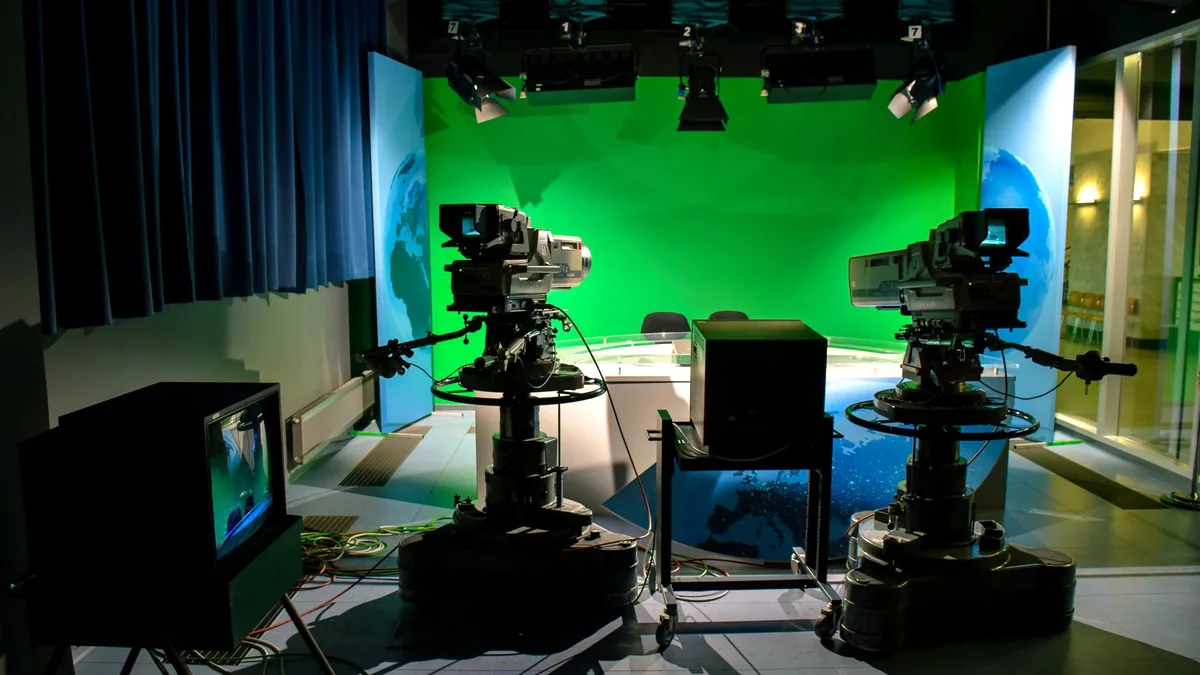
Removing a green screen in Photoshop
 One click now
Removing a background in Photoshop Elements
 Still relevant
A better way to blend in.
Understand what blend modes actually do, and choose the right one for the image.
 Still relevant
Make colour work harder.
Control one colour without changing the rest of the picture.
 Still relevant
How to change one colour in a photo
 Still relevant
Photoshop patterns: using them and making your own
 Still relevant
The right brush changes everything.
Find, install and make sense of the brushes that belong in your toolkit.
 Still relevant
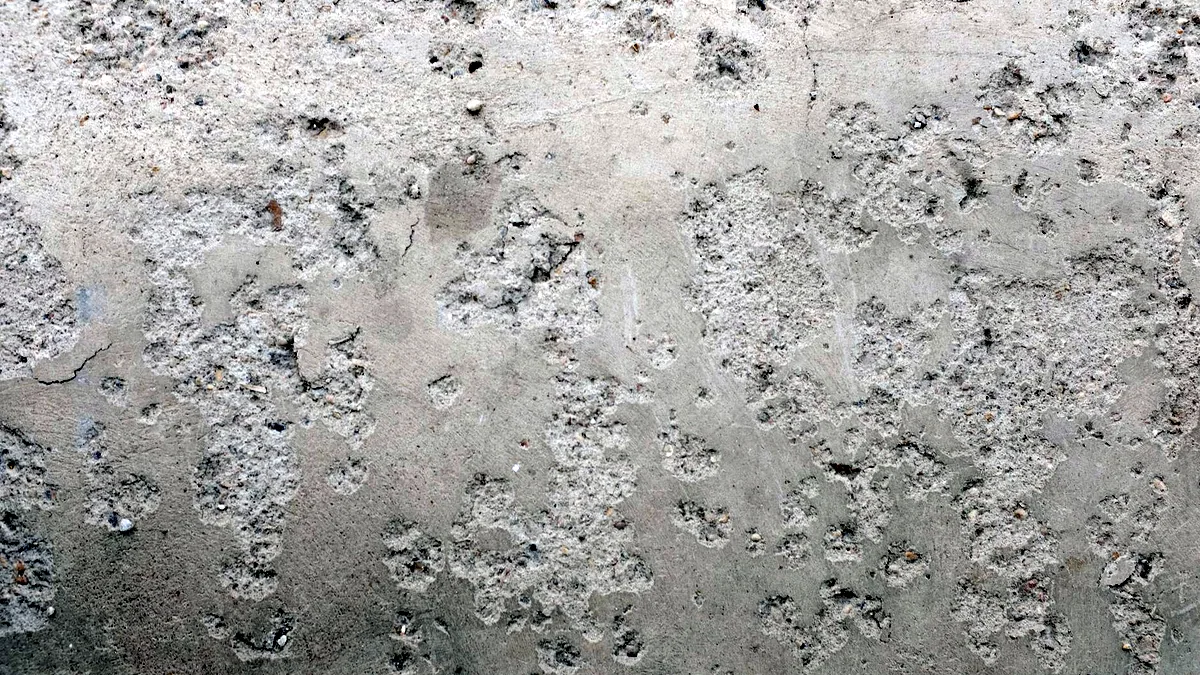
Textures and overlays in Photoshop
The effects this site taught, and which ones aged
 Still relevant
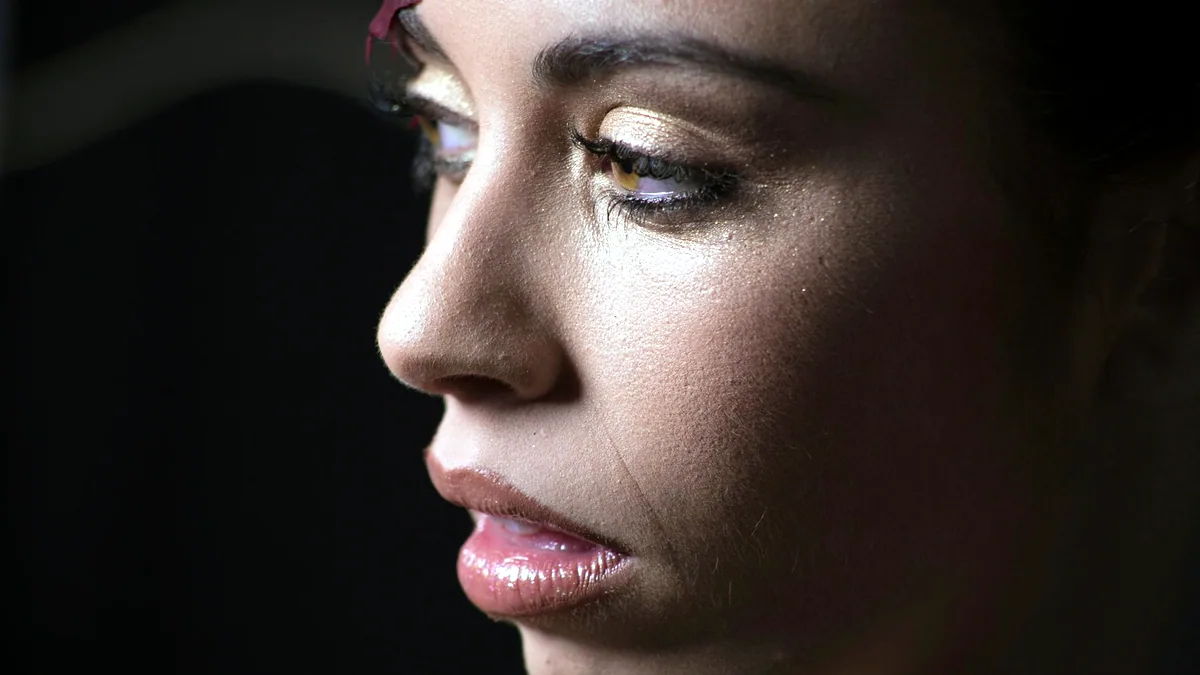
Retouch the portrait. Keep the person.
Natural texture, considered corrections and knowing when to put the brush down.
 Still relevant
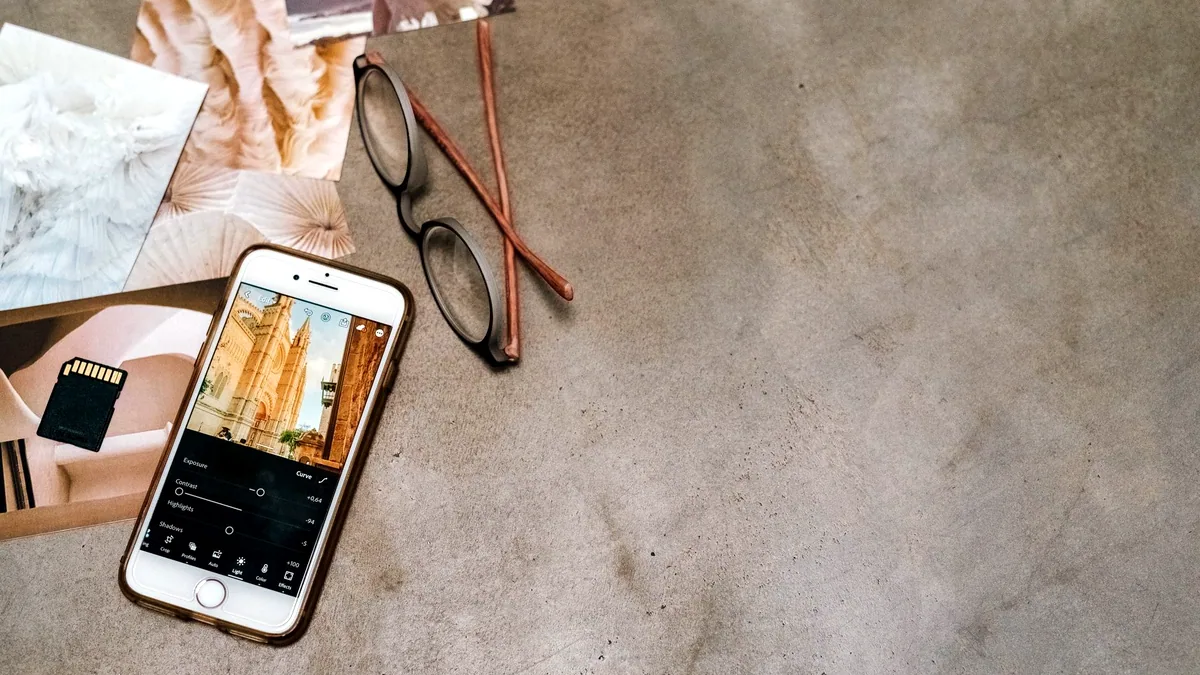
Good edits can happen anywhere.
What Photoshop on a phone can actually do with layers, masks and selections.
What to use instead of Photoshop, free and lawful
 Still relevant
How to swap a face in Photoshop
Adobe Photoshop is a pixel editor: a program that changes the individual dots in a photograph or a painting, as opposed to a vector program that stores shapes as maths. That definition is CURRENT and it decides everything else, because every operation on this page is a way of choosing which pixels to change and how far. This section explains Photoshop one operation at a time rather than as a course, and every operation carries a verdict before its instructions: CURRENT means this is still how you do it, ONE CLICK NOW means the program absorbed the technique and here is the button, DATES THE PICTURE means it works and anybody can tell, and DISCONTINUED means the tool is gone and the page is history rather than instruction. That judgement is the point. A thousand pages already list the steps.
The 4 things the program is actually built on
The program is built on 4 mechanisms, and every tutorial you will ever read is a combination of them. Learning them in this order takes about 1 hour and makes the rest of the interface readable.
- Layers, which are stacked transparent sheets, edited independently, seen from above through the
Layerspanel. - Selections, which limit an edit to one area, made with the
Object Selection ToolatW, theLasso ToolatLor theRectangular MarqueeatM. - Masks, which hide part of a layer rather than deleting it, painted in black and white on a thumbnail beside the layer.
- Adjustment layers, which apply a colour or tonal change live above the picture instead of burning it into the pixels.
That architecture is why Photoshop files stay editable and why the program is used for compositing rather than only for correction. Photoshop for beginners walks through those 4 in order, with the shortcuts, on a photograph that does not matter. Everything below assumes them.
The operations, and what each one is worth learning
The operations people actually open Photoshop to perform are a short list, and the verdict beside each one is the reason to read the page or skip it.
| Operation | Verdict | The short version |
|---|---|---|
| Removing a background | ONE CLICK NOW | Remove Background in the Contextual Task Bar, then repair what it missed |
| Cutting out hair | Automatic first, then manual | Select Subject, then the Refine Edge Brush in Select and Mask |
| Removing a green screen | Automatic first, then colour work | The cut is easy, the green spill on the subject is the job |
| Removing an object from a picture | ONE CLICK NOW | Select the object, then the generative fill and healing commands |
| Retouching skin and blemishes | CURRENT | The Spot Healing Brush at J, used sparingly on a duplicate layer |
| Layer masks and compositing | CURRENT | The mechanism the whole program rests on, unchanged in 20 years |
| Gradients and colour blends | CURRENT | G for the tool, applied to a mask more often than to the picture |
| Bevelled, glassy and chrome layer styles | DATES THE PICTURE | Recognisable as 2004 from across a room, and the giveaway is the inner bevel |
| Halftone and heavy filter effects | Depends entirely on restraint | Fine as a deliberate print reference, terrible as a default |
Removing a background in Photoshop is the largest of those by demand and the clearest example of why the verdict comes first: the honest answer starts with a button, and the value of the page is entirely in the cases where the automatic selection loses. Hair, motion blur, glass and green screen are those cases, and each has its own page here.
How to tell a Photoshop tutorial is out of date
A Photoshop tutorial goes out of date in a specific and detectable way, and 4 checks will tell you inside 30 seconds whether the one in front of you is worth following.
- Check the date on the page or the upload date on the video, and treat anything older than 3 years as a claim to verify rather than a set of instructions.
- Look for the Contextual Task Bar, the floating strip under the canvas. A tutorial that never mentions it is describing a version of the program from before that bar existed.
- Watch for
Select > Refine Edgeas the main edge tool, which was replaced by theSelect and Maskworkspace, and for long manual erasing whereSelect Subjectnow does the same work. - Count the steps against the result. Where a tutorial spends 15 steps producing something the program now does with 1 command, it was written before that command existed.
The same test applies to a downloadable tutorial PDF, which is the format least able to age gracefully: it freezes menu positions and panel names at the moment it was written and gives you nothing to date it by. That is also the honest answer to the question of which YouTube channel is best. Judge any channel by whether it names the panel a control lives in and by how recent the upload is, rather than by subscriber count, and note that a beginner series that was excellent in 2016 now teaches an interface that has moved.
Photoshop, Elements and the programs beside it
Photoshop is not the only route to most of these operations, and picking the right program saves more time than any technique.
- Photoshop Elements shares the Contextual Task Bar, so the one click background removal exists there, but it has no
Channelspanel and noPen Tool, and it uses theRefine Edgedialog rather than theSelect and Maskworkspace. - Illustrator handles shapes, logos and type as vectors, which scale to any size without losing quality, and Illustrator, operation by operation covers that side of the work.
- PaintShop Pro is still alive and still sold from Corel's own site with a free trial, which surprises a lot of people: Corel bought Jasc Software and the distribution rights in October 2004, and the most recent release is PaintShop Pro 2023, version 25.0, published in December 2022.
- Adobe Fireworks is gone. Adobe announced the discontinuation in May 2013, citing overlap with Photoshop and Illustrator, and shipped no replacement, so anything about Fireworks on this site is history and never instruction.
That last pair is what a 20 year archive is for. A site with no memory files PaintShop Pro and Fireworks in the same drawer marked old, and gets one of the 2 badly wrong.
Getting Photoshop, including the free routes
The free routes to this work are real and worth naming plainly, because a large share of the search demand around this program is really a price question. The Photoshop mobile app launched on iPhone in February 2025, with an Android version later that year, and the base app is free: it includes selections, layers, masks, compositing, Tap Select and the Spot Healing Brush, which is enough for most of the operations listed above. The full feature set needs a subscription, either an existing desktop plan or the Photoshop Mobile and Web plan at $7.99 a month or $69.99 a year. Photoshop on a phone covers what that app does and where it stops.
On a desktop, 4 programs do this work at no cost: GIMP, which is actively released and reached 3.0.8 on 24 January 2026, Krita at 5.3.2.1 from 1 June 2026, Photopea, which runs in a browser and opens PSD files with layers and masks intact, and Paint.NET on Windows. Adobe and Corel both offer trials of their paid programs from their own sites. Students following a school or college syllabus that names Adobe Photoshop specifically, including the early classes where the program is taught as an introduction to computer graphics, will find that the 4 mechanisms at the top of this page transfer to every one of the free programs above, since they all use layers, selections and masks in the same way.
This site names no crack, serial, keygen, mirror or full version download, on this page or on any other. There is no need for one. The free programs listed here remove backgrounds, mask, composite and retouch to a standard that was professional a decade ago, and the vendors' own trials are the only other lawful way to run the paid programs.
Where to go next
Keep making.
All guidesOne click nowRemove the background. Keep the detail.
Start with one click. Learn what to do when hair, glass and difficult edges need a little more care.
Still relevantRetouch the portrait. Keep the person.
Natural texture, considered corrections and knowing when to put the brush down.
Still relevantA better way to blend in.
Understand what blend modes actually do, and choose the right one for the image.